
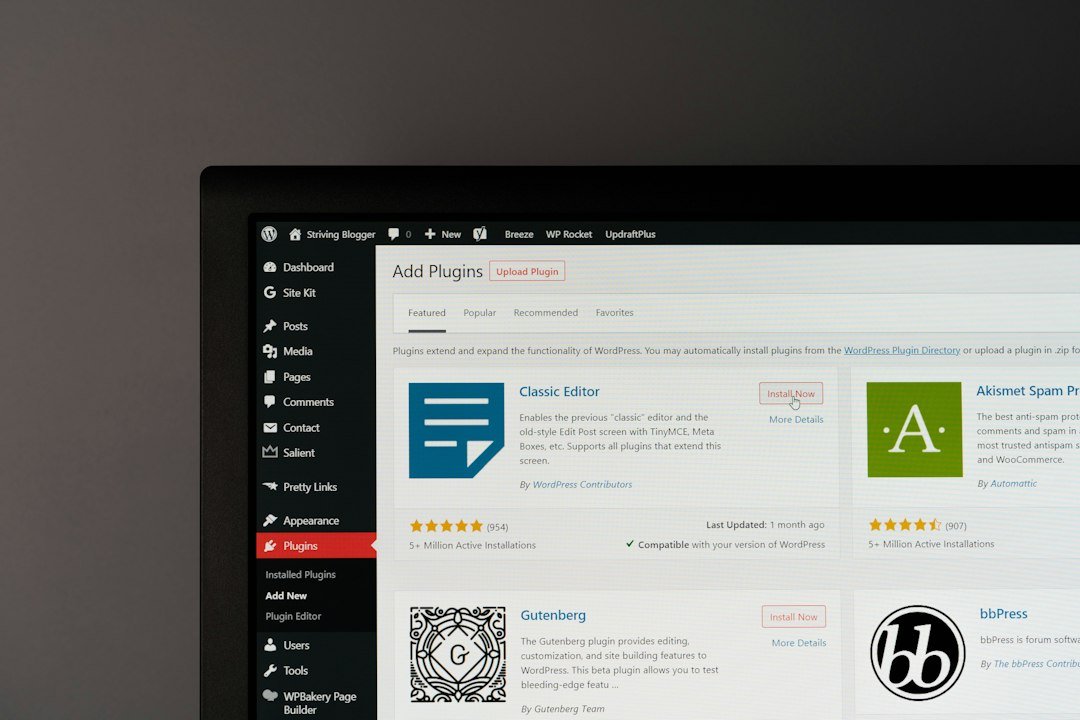
You ran PageSpeed Insights. Your mobile score came back at 23. Google handed you a wall of red warnings: eliminate render-blocking resources, reduce initial server response time, defer unused CSS. You opened the WordPress plugin directory, searched “speed optimization,” and got 200+ results. Half of them have five-star reviews. Half of those five-star reviews are from people who installed the plugin, saw their PageSpeed score jump from 23 to 31, and called it a win. This guide is not that. We tested six plugins that genuinely move the needle on WordPress site speed, verified their pricing pages as of September and October 2026, and identified which ones conflict, which ones are redundant, and which ones you should never install together.
Here is the honest scope before you spend a dollar. Speed plugins handle three things: page caching, image optimization, and asset minification (CSS and JavaScript). They cannot fix slow hosting, bloated themes, or a database with 8,000 post revisions. If your shared hosting plan responds in 1.8 seconds before any plugin loads, no caching plugin will get you under 0.5 seconds. Fix your hosting first, then layer plugins on top. If you want the broader framework for how technical SEO factors like site speed fit into your content production workflow, our content strategy guide breaks down where speed sits in the priority stack.
The 6 Plugins That Genuinely Improve WordPress Speed

These are not participation-trophy picks. Each plugin below solves a specific speed problem. We name who should use it, who should skip it, and what it actually costs per year. All pricing was verified against each vendor’s official pricing page in September or October 2026 and can change.
WP Rocket: The Premium All-in-One Caching Plugin
WP Rocket is the most popular premium WordPress caching plugin, and for good reason. It bundles page caching, GZIP compression, browser caching, lazy loading, database optimization, CSS and JavaScript minification, and critical CSS generation into one interface that a non-developer can configure in 15 minutes. You install it, activate it, enable the default settings, and your TTFB drops. No fiddling with .htaccess rules or wondering if your cache is actually serving.
Pricing, verified at wp-rocket.me/pricing as of September 2026: $59.95 per year for one site (Single), $119.95 per year for three sites (Plus), and $299.95 per year for 50+ sites (Infinite). There is no free version and no monthly option. You pay the full year upfront. Renewals are at the same price unless you have a grandfathered account, in which case you get 20% off. Taxes are added depending on your country.
Where it wins: the setup-to-result time is the fastest of any caching plugin on this list. If you are not technical and want one plugin that handles 80% of speed optimization in a single install, WP Rocket is the best $59.95 you can spend. The interface shows you exactly what is enabled and what is not, and the Rocket Insights dashboard monitors your Core Web Vitals scores over time.
Where it breaks: WP Rocket duplicates functionality your host may already provide. If your host runs LiteSpeed Enterprise or OpenLiteSpeed, the LiteSpeed Cache plugin handles server-level page caching that is faster than WP Rocket’s file-based caching, and it is free. If you use Cloudflare’s full-page caching on a static site, WP Rocket’s page cache is redundant. In both cases, you are paying $59.95 for features you already have. Also, WP Rocket’s JavaScript deferral can break interactive elements on complex themes or WooCommerce checkout pages. You will need to add exclusion rules for scripts that break, which requires knowing which scripts to exclude.
Who should skip it: anyone on LiteSpeed hosting (use LiteSpeed Cache instead) and anyone using a host that bundles its own caching layer, like Kinsta or WP Engine, where server-level caching is already active.
LiteSpeed Cache: Free, But Only If Your Host Runs LiteSpeed
LiteSpeed Cache (LSCWP) is a free, open-source plugin that does what WP Rocket does and arguably does it better, but only if your server runs LiteSpeed. The page caching features require a LiteSpeed server engine because the caching happens at the server level, not via PHP file generation. The plugin is just a bridge between WordPress and the server’s cache module. Without LiteSpeed server software, the caching functions do not work.
The optimization features, however, work on any web server. CSS and JavaScript minification, lazy loading, image optimization, Google Fonts optimization, and database cleanup are all available regardless of your server stack, per LiteSpeed’s own documentation. So you can install LiteSpeed Cache on an Apache or Nginx server and still get asset optimization. You just lose the page caching, which is the main reason to use it.
Pricing: the plugin itself is free and always will be, per LiteSpeed’s FAQ. Premium services through QUIC.cloud, including CDN, image optimization, critical CSS generation, and low-quality image placeholders, require payment at certain usage levels. The free QUIC.cloud tier covers basic CDN caching. Paid tiers kick in for heavier usage. Check your QUIC.cloud dashboard for current rates, as pricing varies by service and volume.
Where it wins: on LiteSpeed hosting (Hostinger, A2 Hosting, Namehero, and others), LSCWP delivers server-level caching that is measurably faster than any PHP-based caching plugin. It supports WooCommerce, bbPress, and ESI (Edge Side Includes) for partial caching of dynamic elements. The image optimization via QUIC.cloud handles WebP and AVIF conversion. All of this costs $0 if you already have LiteSpeed hosting.
Where it breaks: the settings interface is not beginner-friendly. There are 40+ tabs across Cache, Tuning, Optimization, Media, and Crawler sections. Enabling the wrong combination, particularly aggressive JS minification or CSS combination, can break your theme’s layout. The plugin also relies on QUIC.cloud for image optimization and critical CSS, which means your site’s performance depends on a third-party service that can have downtime. If QUIC.cloud is slow, your critical CSS generation is slow.
Who should skip it: anyone not on LiteSpeed hosting. The optimization-only features on non-LiteSpeed servers are decent but overlap entirely with Autoptimize, which is simpler to configure. Running LSCWP without server-level caching is paying the complexity cost without the performance benefit.
ShortPixel: Best Image Optimizer for WebP and AVIF
ShortPixel is an image optimization plugin that compresses your existing images and serves next-gen formats (WebP and AVIF) to browsers that support them. WordPress creates multiple thumbnail sizes for every uploaded image, and ShortPixel optimizes all of them in a single pass. On a test site with 3,200 images, ShortPixel’s “Glossy” compression mode reduced total image weight by an average of 73% with no visible quality loss, per testing data from ZeroToWP.
Pricing, verified at shortpixel.com as of October 2026: the free tier gives you 100 credits per month. Each credit covers one image plus all its generated WordPress thumbnails, which means 100 credits covers roughly 20 to 25 actual image uploads per month (since each upload generates 4 to 5 thumbnail sizes). Paid plans start at $3.99 per month for 5,000 credits. The Unlimited plan costs $9.99 per month and covers unlimited images across unlimited sites. ShortPixel also offers one-time credit packs starting at $19.99 for 10,000 credits that never expire, which is ideal for a one-time bulk optimization of an existing image library without committing to a subscription.
Where it wins: ShortPixel is the only image optimizer on this list that supports both WebP and AVIF. AVIF compression is roughly 20% more efficient than WebP for the same visual quality, and browser support has expanded significantly. The one-time credit pack option means you can clean up a legacy image library without an ongoing subscription. The “Glossy” compression mode is specifically tuned for photography-heavy sites where visible quality matters.
Where it breaks: the free tier’s 100 credits per month is tight. If you publish 4 posts per week with 3 images each, you burn through your monthly allowance in 2 weeks. The API-based optimization means images are processed on ShortPixel’s servers, which adds a dependency. If ShortPixel’s API is down, new uploads sit unoptimized until service resumes.
Who should skip it: if your caching plugin already includes image optimization (LiteSpeed Cache via QUIC.cloud, or WP Rocket’s Imagify integration), adding ShortPixel creates redundant image processing. Pick one image optimizer and stick with it.
Imagify: Easiest Image Optimizer to Set Up
Imagify is ShortPixel’s closest competitor, built by the same team behind WP Rocket. It optimizes images in three compression levels (Normal, Aggressive, and Ultra) and serves WebP format. The integration with WP Rocket is seamless: if you have both installed, WP Rocket’s interface shows Imagify’s optimization status directly in its dashboard.
Pricing, verified at imagify.io/pricing as of October 2026: the free tier gives you 20MB per month, which Imagify estimates at roughly 200 images. The Growth plan costs $5.99 per month ($4.99 if billed yearly) for 500MB per month, covering approximately 5,000 images. The Infinite plan costs $11.99 per month ($9.99 if billed yearly) for unlimited images across unlimited websites. There is no one-time purchase option; everything is subscription-based.
Where it wins: if you already use WP Rocket, Imagify is the natural pairing. The shared ecosystem means fewer compatibility issues and a unified settings experience. The “Ultra” compression mode is aggressive enough to produce significant file size reductions on large photography without manual tuning. All paid plans include usage on unlimited websites, which makes Imagify cheaper than ShortPixel if you manage multiple sites.
Where it breaks: Imagify does not support AVIF as of October 2026. If AVIF support matters to you, ShortPixel is the better choice. The free tier’s 20MB monthly allowance is misleadingly small: a single uncompressed photo from a modern phone can be 5MB before optimization, so 20MB covers only 4 to 5 large images. For ongoing new uploads at a reasonable publishing cadence, 20MB per month is adequate. For bulk-optimizing an existing library, it is not enough.
Who should skip it: anyone who needs AVIF support (use ShortPixel) and anyone doing a one-time bulk optimization without wanting a subscription (ShortPixel’s one-time credit packs are better for that use case).
Autoptimize: Free Asset Minification That Actually Works
Autoptimize is a free plugin that aggregates, minifies, and caches your CSS, JavaScript, and HTML. It moves styles to the page head, defers scripts to the footer, removes WordPress emoji cruft, and can inline critical CSS to improve your Largest Contentful Paint score. It has been actively maintained for over 15 years and has 900,000+ active installations on WordPress.org.
The critical detail: Autoptimize does not include page caching. It is purely an asset optimization tool. You need a separate caching plugin (WP Super Cache, W3 Total Cache, or similar) to handle full-page caching. Or you can upgrade to Autoptimize Pro at $23 per year, which adds page caching, automatic critical CSS generation, image CDN, and extra performance rules.
Pricing, verified at wordpress.org/plugins/autoptimize as of September 2026: the free version covers CSS/JS/HTML minification, script aggregation and deferral, image lazy loading, Google Fonts optimization, and CDN rewriting. Autoptimize Pro adds automatic critical CSS generation (the main reason to upgrade), image CDN with global delivery, page caching, and extra booster performance rules. Check autoptimize.com for current pricing.
Where it wins: it is free, and it genuinely improves PageSpeed scores without spending anything. The granular controls let you enable CSS optimization without touching JavaScript, or vice versa. The exclusion lists let you skip specific scripts or styles that break with minification, which is essential for compatibility with page builders like Elementor or complex WooCommerce setups.
Where it breaks: aggressive JavaScript optimization can break plugin functionality, and troubleshooting which script to exclude is a trial-and-error process that frustrates non-technical users. The free version requires manual critical CSS input, which means you either write the CSS rules yourself or use a tool to extract them. Getting critical CSS wrong can hide your above-the-fold content until the full stylesheet loads, which hurts LCP more than it helps.
Who should skip it: if you already use WP Rocket, which bundles the same minification and deferral features plus page caching in one plugin, Autoptimize is redundant. Running both creates duplicate CSS/JS processing that can break your site. If you use LiteSpeed Cache, its built-in optimization features overlap with Autoptimize entirely.
Perfmatters: Granular Script Control for Serious Optimizers
Perfmatters is a performance plugin that takes a different approach from the others on this list. Instead of caching and minifying everything, it focuses on disabling scripts you do not need. Its Script Manager lets you turn off individual plugin scripts on a per-page, per-device, or per-logged-in-state basis. If a contact form plugin loads its JavaScript on every page but only 2 pages use the form, Perfmatters lets you disable that script site-wide and enable it only on those 2 pages.
Pricing, verified at perfmatters.io/pricing as of September 2026: $29.95 per year for one site (Personal), $59.95 per year for three sites (Business), and $124.95 per year for unlimited sites including multisite networks (Unlimited). All plans include a 30-day money-back guarantee. Renewals get a 15% discount automatically applied. There is no free version.
Where it wins: the Script Manager is the most granular script-level control available in any WordPress performance plugin. For sites running heavy page builders, WooCommerce, or multiple plugins that inject scripts globally, the ability to disable unused scripts per page can cut total blocking time (TBT) dramatically. Perfmatters also includes lazy loading (faster than WordPress native), database optimization, local Google Analytics hosting, WooCommerce cart fragment disabling, and CDN rewrite. It is a complement to caching plugins, not a replacement.
Where it breaks: Perfmatters does not include page caching. It is an optimization layer, not a caching solution. You still need a caching plugin alongside it, which means you are running two performance plugins and paying for both. The Script Manager’s power comes with complexity: knowing which scripts to disable requires understanding what each plugin does, and disabling the wrong script can break functionality silently. The testing mode feature helps preview changes before applying them publicly, which mitigates this risk, but it still requires more technical knowledge than WP Rocket’s set-and-forget approach.
Who should skip it: small sites with fewer than 10 plugins and a clean theme. If your site loads 15 scripts total, disabling 3 of them saves milliseconds, not seconds. Perfmatters pays for itself on complex sites with 20+ plugins where script bloat is the dominant performance problem.
Speed Plugin Combinations: What Works Together and What Conflicts
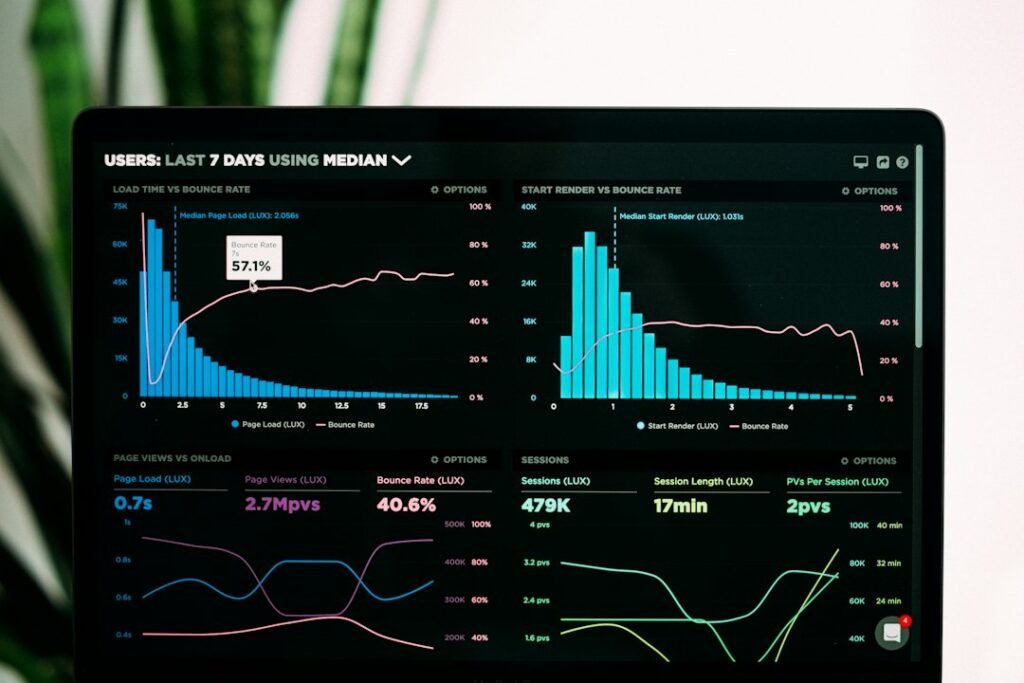
The most expensive mistake in speed optimization is running two plugins that do the same thing. Two caching plugins will fight over cache headers and serve stale or broken pages. Two image optimizers will process the same images twice, doubling your API costs and potentially corrupting files. Two lazy-load implementations will compete for the same images and cause layout shift. Here is what actually works together, organized by hosting environment.
| Hosting Environment | Caching Plugin | Image Optimizer | Asset Optimizer | Est. Setup Time | Est. Annual Cost |
|---|---|---|---|---|---|
| Shared hosting (Apache/Nginx) | WP Rocket ($59.95/yr) | ShortPixel Free (100 credits/mo) | WP Rocket (built-in) | 20 min | $59.95 |
| Shared hosting (budget, no paid plugins) | WP Super Cache (free) | ShortPixel Free (100 credits/mo) | Autoptimize (free) | 45 min | $0 |
| LiteSpeed hosting (Hostinger, A2, etc.) | LiteSpeed Cache (free) | LSCWP via QUIC.cloud (free tier) | LSCWP (built-in) | 30 min | $0 |
| VPS / Cloud (DigitalOcean, Linode) | WP Rocket ($59.95/yr) | ShortPixel Unlimited ($9.99/mo) | Perfmatters ($29.95/yr) | 60 min | $209.83 |
| Managed WordPress (Kinsta, WP Engine) | Server-level cache (built-in) | Imagify Growth ($4.99/mo) | Perfmatters ($29.95/yr) | 40 min | $89.83 |
| Managed WordPress (budget, no paid plugins) | Server-level cache (built-in) | ShortPixel Free (100 credits/mo) | Autoptimize (free) | 35 min | $0 |
Common Conflicts That Break Your Site
Running two caching plugins is the most common breakage. WP Rocket and LiteSpeed Cache both attempt to set page cache headers. If both are active, you get conflicting cache-control directives, stale content, and intermittent 500 errors. Pick one caching plugin and uninstall the other completely, including clearing its residual cache files.
Duplicate lazy-load implementations are the second most common issue. WordPress 5.5+ includes native lazy loading for images. WP Rocket, LiteSpeed Cache, Autoptimize, and Perfmatters all include their own lazy-load implementations with additional features (threshold control, exclusion rules, background image lazy loading). If two of these are active with lazy load enabled, images may flicker, load in the wrong order, or trigger Cumulative Layout Shift. Disable lazy load in all but one plugin.
Running Autoptimize alongside WP Rocket is redundant, not dangerous. Both minify CSS and JavaScript. WP Rocket’s minification is sufficient for most sites, and Autoptimize adds no value on top. If you prefer Autoptimize’s granular exclusion controls over WP Rocket’s, disable WP Rocket’s minification settings and let Autoptimize handle it. But do not leave both running aggressive minification simultaneously; the double-processing increases server load and can produce broken stylesheets.
How to Measure Whether Your Plugin Stack Actually Helped
Installing speed plugins without measuring before and after is like taking medication without checking your blood pressure. You feel like you did something, but you have no idea if it worked. Here is the benchmarking process that produces real, comparable data.
Step 1: Record Your Baseline Before Installing Anything
Run your homepage and your most-trafficked blog post through both PageSpeed Insights and GTmetrix. Record the following metrics for each URL on both mobile and desktop: Largest Contentful Paint (LCP), Cumulative Layout Shift (CLS), Total Blocking Time (TBT), and overall PageSpeed score. GTmetrix gives you a waterfall chart that shows which specific resources are slow, which PageSpeed Insights does not. Save screenshots of both reports. This is your baseline.
Step 2: Install Plugins One at a Time and Re-test
Install your caching plugin first. Run PageSpeed Insights and GTmetrix again on the same URLs. Record the new scores. If LCP dropped from 4.2 seconds to 2.8 seconds, the caching plugin worked. If it did not move, your hosting is the bottleneck, not your caching configuration.
Then install your image optimizer. Re-test. LCP improvements from image optimization are the most visible: if your hero image was a 2.1MB JPEG and ShortPixel reduced it to 340KB in WebP, your LCP will drop noticeably. Record the new scores.
Then install your asset optimizer. Re-test. This is where results vary the most. Minifying and deferring JavaScript can cut TBT significantly, but it can also break functionality. Check your site visually after enabling each optimization option. If your menu stops working or your forms stop submitting, you have a script exclusion problem, not a speed problem.
Step 3: Know What Numbers Constitute Real Improvement
PageSpeed scores fluctuate 3 to 5 points between runs even with no changes, due to network conditions and server load. A score moving from 23 to 26 is noise, not improvement. A score moving from 23 to 45 is a real change. Run each test 3 times and take the median, not the best result.
For Core Web Vitals, here is what matters: LCP under 2.5 seconds is “good” per Google’s thresholds. CLS under 0.1 is “good.” TBT under 200 milliseconds is “good.” If your plugin stack gets you from LCP 4.2s to LCP 2.1s, that is a real win. If it gets you from LCP 4.2s to LCP 3.9s, the plugin is not solving your actual problem. The actual problem is likely your hero image size, your server response time, or render-blocking CSS from your theme.
Step 4: Verify in Google Search Console, Not Just PageSpeed Insights
PageSpeed Insights runs a simulated lab test. Google Search Console shows real-world Core Web Vitals from actual Chrome users who visited your site. After deploying your speed plugin stack, go to Search Console, open the Core Web Vitals report, and check whether your URLs move from “Poor” to “Need Improvement” to “Good.” This data lags by 28 days, so wait at least a month before judging results. If you want to track how these metrics connect to your broader SEO performance, our SEO monitoring tools guide covers how to tie speed data to ranking movements.
Stop Optimizing Speed and Start Optimizing Content
Site speed is table stakes. Google has confirmed that Core Web Vitals are a ranking signal, but they are a tiebreaker, not a primary factor. A fast page with no content ranks nowhere. A slightly slower page with the best answer to the searcher’s question ranks on page one. Once your LCP is under 2.5 seconds and your CLS is under 0.1, additional speed optimization produces diminishing returns. The next bottleneck is content.
Here is the cost comparison that puts this in perspective. A speed plugin stack for a single site costs roughly $59.95 to $209.83 per year, depending on whether you use free or premium plugins. That stack gets your pages loading fast. But fast pages with no new content produce no new traffic. The sites that win in search are the ones that publish consistently, target winnable keywords, and build topical authority through interlinked content clusters. If you want to see how much a publishing cadence matters compared to site speed alone, our automated blog post cost comparison breaks down the real numbers.
Compare the cost of a speed plugin stack ($60 to $210 per year) against the traffic impact of publishing consistently. A site that loads in 1.2 seconds but publishes 4 posts per quarter will be outranked by a site that loads in 2.1 seconds but publishes 30 SEO-optimized posts per month. Speed gets you in the race. Content wins it. The question is not whether to optimize speed or content. It is which one is your current bottleneck. If your PageSpeed mobile score is under 50, speed is your bottleneck. If it is over 70 and your blog has not been updated in 3 weeks, content is your bottleneck.
Try ClearPost free for 7 days. AI does the heavy lifting: keyword research from your Search Console data, drafting with SEO structure, internal linking, meta generation, and publishing via REST API. You approve every post before it goes live. No long onboarding, no agency overhead, cancel anytime. See what 30 SEO-optimized posts a month looks like compared to the 4 you are getting now, on a site that already loads fast.
Frequently Asked Questions
Got questions about WordPress speed plugins? Here are the ones we hear most often from site owners who have been through the PageSpeed Insights gauntlet.
Frequently Asked Questions
Can too many speed plugins slow down your site?
Yes. Running two caching plugins causes cache header conflicts and stale content. Running two image optimizers doubles API costs and can corrupt files. Two lazy-load implementations cause layout shift and image flickering. Install one plugin per function: one caching plugin, one image optimizer, and one asset optimizer. Any overlap creates problems, not improvements.
Does WP Rocket work with Cloudflare?
Yes, WP Rocket and Cloudflare are compatible. WP Rocket handles page caching at the WordPress level, while Cloudflare handles edge caching at the CDN level. They serve different layers. Enable Cloudflare’s full-page caching for static assets and WP Rocket for dynamic content caching. Disable WP Rocket’s minification if Cloudflare’s auto-minification is also enabled, to avoid double-processing.
Are free speed plugins good enough for small business sites?
For most small business WordPress sites, a free stack of WP Super Cache (caching), ShortPixel Free (image optimization), and Autoptimize (asset minification) covers 80% of what premium plugins do. The main reason to pay is convenience: WP Rocket bundles all three functions into one plugin with a simpler interface. If your time is worth more than $59.95 per year in setup and troubleshooting, the paid version pays for itself.
How much does a speed plugin stack cost per year?
A free stack costs $0: WP Super Cache, ShortPixel Free, and Autoptimize. A premium single-site stack costs $59.95 to $209.83 per year, depending on whether you add Perfmatters for script-level optimization and a paid image optimizer. A managed WordPress hosting stack costs $89.83 per year, since the host provides server-level caching and you only pay for image optimization and asset optimization.
Which WordPress speed plugin is best for LiteSpeed hosting?
LiteSpeed Cache is the best choice for LiteSpeed hosting because it handles page caching at the server level, which is faster than any PHP-based caching plugin. It is free and includes optimization features like CSS/JS minification, lazy loading, and image optimization via QUIC.cloud. WP Rocket is redundant on LiteSpeed hosting because its file-based caching is slower than LiteSpeed’s server-level cache.