

You installed Yoast. You filled in every meta description. You hit green lights on every page. Your desktop PageSpeed score is 87. Your traffic has not moved in four months. The importance of mobile optimization for SEO is not a buzzword your agency tossed into a proposal. It is the reason your SEO investment is underperforming despite doing everything the plugin checklist said.
The Mobile-First Indexing Reality Most WordPress Owners Miss
Google ranks the mobile version of your pages, not the desktop one. This is not a future change or a best practice tip. It has been the operational reality since July 5, 2024, when Google completed its transition to mobile-first indexing and began crawling every site exclusively with Googlebot Smartphone. If your mobile experience is broken, your desktop experience does not matter for rankings.
Over 60% of Google searches happen on mobile devices. Google confirmed in October 2023 that mobile-first indexing was complete for all sites that work on mobile, and in June 2024 announced the final cutoff: after July 5, 2024, sites not accessible on mobile would no longer be indexable at all. Your site might look perfect on your laptop. Google has never looked at it from your laptop.
The SEO plugins you installed, Yoast, Rank Math, All in One SEO, do not test mobile usability. They check meta tags, sitemaps, schema markup, and keyword placement. All of that is necessary. None of it tells you whether your mobile pages load in under 2.5 seconds, whether your layout shifts when ads load, or whether your navigation buttons are too close together for a thumb to tap accurately. Those are the signals Google’s mobile-first indexing actually evaluates, and they live in a layer your SEO plugin does not touch.
Here is the gap that costs small business owners real money. You paid an agency $2,500 a month. They installed Rank Math, ran the setup wizard, configured your schema, and delivered a green-light report. That report checked desktop content. Google ranked mobile content. Your traffic stayed flat because the version of your site Google actually evaluated was never optimized, never tested, and never even looked at on a phone. If you want the broader framework for how technical SEO factors fit into your content production workflow, our content strategy guide breaks down where mobile optimization sits in the priority stack.
What Mobile Optimization Actually Means for SEO (Beyond Responsive Design)
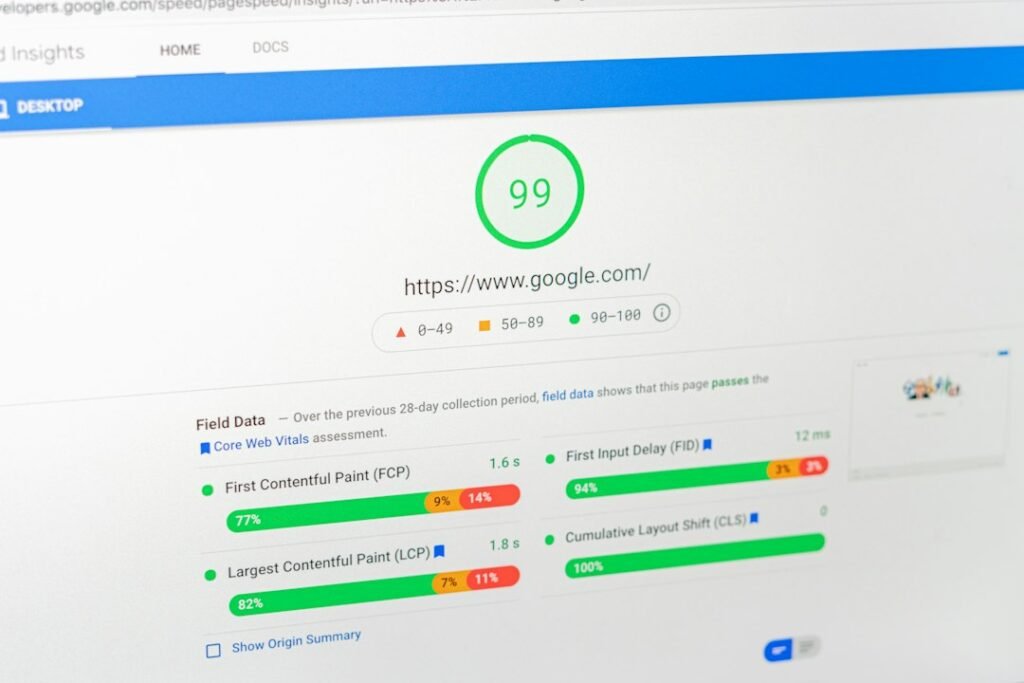
Responsive design is the baseline, not the finish line. A responsive theme resizes content to fit the screen. Responsive does not mean fast, stable, or usable. Google measures three specific Core Web Vitals on mobile, and all three have hard thresholds that determine whether your pages are classified as “good,” “needs improvement,” or “poor.” Per Google’s own Core Web Vitals documentation, the thresholds are non-negotiable and measured exclusively on mobile.
Here is what those thresholds look like, alongside the mobile UX signals that SEO plugins completely ignore:
| Signal | Good Threshold | Needs Improvement | Poor | What It Measures | Does Yoast or Rank Math Check This? |
|---|---|---|---|---|---|
| LCP (Largest Contentful Paint) | Under 2.5s | 2.5s to 4s | Over 4s | How fast main content loads on mobile | No |
| INP (Interaction to Next Paint) | Under 200ms | 200ms to 500ms | Over 500ms | How fast page responds to taps | No |
| CLS (Cumulative Layout Shift) | Under 0.1 | 0.1 to 0.25 | Over 0.25 | How much layout shifts during load | No |
| Tap target size | 48px by 48px minimum | Below 48px | Overlapping targets | Whether buttons are tappable on phones | No |
| Tap target spacing | 8px minimum gap | Under 8px | Overlapping | Whether adjacent links are far enough apart | No |
| Content wider than screen | No horizontal scroll | Minor overflow | Significant overflow | Whether elements break the mobile viewport | No |
| Meta title and description | Present and correct length | Too long or too short | Missing | Search result appearance | Yes |
| Schema markup | Valid structured data | Warnings | Errors | Rich result eligibility | Yes |
| XML sitemap | Generated and submitted | Partial | Missing | Crawl discovery | Yes |
That table is the entire problem. The bottom three rows are what your SEO plugin checks. The top six rows are what Google’s mobile-first indexing evaluates. There is zero overlap. A site with perfect meta tags, valid schema, and a clean sitemap can still fail every Core Web Vitals threshold on mobile and never crack page one.
LCP: Why Your Hero Image Is Quietly Killing Rankings
Largest Contentful Paint measures how long it takes for the largest visible element on the screen to load. On most WordPress blog posts, that element is the hero image or the featured image. A 2.1MB JPEG uploaded straight from your phone, served at full resolution to a 375px-wide mobile screen, will push your LCP past 4 seconds on a 4G connection. Google classifies that as “poor.”
The fix is not complex but it is not something your SEO plugin handles. Convert hero images to WebP, add explicit width and height attributes so the browser reserves space, and add fetchpriority="high" to the LCP element. If your theme lazy-loads the hero image, disable lazy loading for that specific image. Lazy loading the LCP element delays it, which is the opposite of what you want. For a deeper dive on the plugin stack that handles image optimization and conversion, our guide on WordPress speed plugins covers which tools actually compress and serve next-gen formats.
CLS: The Layout Shift You Cannot See on Desktop
Cumulative Layout Shift measures how much your page content jumps around during loading. A CLS score under 0.1 is “good.” Over 0.25 is “poor.” The most common causes on WordPress sites are images without width and height attributes, ads that load after the page renders, and embedded content like tweets or YouTube videos that push surrounding elements down when they load.
You will never see layout shift on your desktop monitor because the viewport is wide enough that everything loads in place. On a 375px phone screen, a 300px ad slot that appears 2 seconds after load shoves your content down by 300 pixels. The user was reading. Now they are staring at an ad. That is a CLS event, and Google counts every instance.
INP and Tap Targets: The Responsiveness Signals Nobody Talks About
Interaction to Next Paint replaced First Input Delay as a Core Web Vital in March 2024. INP measures how quickly your page responds to every tap, click, and keyboard interaction throughout the page lifecycle, not just the first one. A good INP is under 200 milliseconds. The main culprit on WordPress sites is heavy JavaScript from page builders, slider plugins, and analytics scripts that block the main thread. When a user taps a menu button and nothing happens for 600 milliseconds, that is a poor INP score.
Tap target sizing is a separate but related signal. Per Google’s Lighthouse documentation, tap targets must be at least 48px by 48px, with at least 8px of spacing between them. If your mobile menu has links at 32px with 4px gaps, Lighthouse flags every link as a tap target failure. Your SEO plugin does not render your page on a mobile viewport, so it has no way to detect this. The only way to find it is to run a Lighthouse mobile audit or look at your site on an actual phone.
How AI-Generated Content Can Break Mobile UX Without You Noticing

AI content tools generate text. They do not generate mobile-optimized HTML. If you are publishing AI-generated posts at scale through a WordPress plugin or a workflow that publishes via REST API, three mobile UX problems appear silently and compound across every post you publish.
Non-Responsive Images That Break the Viewport
AI content tools often insert images with fixed pixel widths or without explicit dimensions. On mobile, a 1200px-wide image in a 375px viewport causes horizontal scrolling, which Lighthouse flags as “content wider than screen.” Without width and height attributes, the image also triggers CLS because the browser does not know how much space to reserve until the image loads. The content below shifts down, and your CLS score jumps.
The fix: ensure every image in your AI-generated posts has explicit width and height attributes, uses responsive CSS (max-width: 100%), and is served in WebP format. If your publishing workflow does not handle this automatically, you are accumulating mobile UX debt on every post you publish.
Heading Structures That Create Visual Clutter on Small Screens
AI tools tend to generate dense heading structures. Six H2 and H3 tags in the first 500 words, with one short paragraph between each heading. On a 1440px desktop monitor, this looks organized and scannable. On a 375px phone screen, six consecutive bold headings stacked vertically create a wall of text that pushes actual content below the fold. The user sees headings, not answers. LCP increases because the largest contentful element is now further down the page. Bounce rate increases because the user does not find what they came for in the first scroll.
The fix: limit headings to one H2 every 200 to 300 words of content. Do not stack two headings with no body text between them. If your AI tool generates a heading-heavy structure, edit it during the review step. The review step is not optional. Any tool that auto-publishes AI content without a human approval gate is a liability, not a feature. You need eyes on every post before it goes live, and part of that review should include checking the structure on a narrow viewport.
Tables and Code Blocks That Overflow Mobile Screens
AI content frequently includes comparison tables and code blocks. Standard HTML tables on mobile either overflow the viewport, causing horizontal scrolling, or get compressed to unreadable column widths. Code blocks with long lines extend past the screen edge. Both of these break mobile layout and trigger Lighthouse “content wider than screen” warnings.
The fix: wrap tables in a container with overflow-x: auto so they scroll horizontally within their container instead of breaking the page. For code blocks, add overflow-x: scroll and white-space: pre-wrap. If your WordPress theme does not handle this by default, add it to your custom CSS. One line of CSS fixes every table on every post, past and future.
Quick Mobile Audit: 5 Checks You Can Run in 10 Minutes
You do not need a developer or an agency to run a mobile audit. You need 10 minutes and two free tools. Here are five checks that will tell you whether your site passes mobile-first indexing requirements or is quietly losing rankings.
1. Run PageSpeed Insights on Your Most-Trafficked Page
Go to pagespeed.web.dev, paste the URL of your most-visited blog post or landing page, and run the mobile test. Ignore the desktop tab entirely. Look at two sections: the Core Web Vitals field data (real user data from Chrome users) and the Lighthouse performance score. If your LCP is over 2.5 seconds, your CLS is over 0.1, or your INP is over 200 milliseconds, you have a mobile SEO problem regardless of what your SEO plugin says.
2. Check the Core Web Vitals Report in Search Console
Open Google Search Console, go to the Core Web Vitals report under “Experience.” This report shows real-world data from actual Chrome users who visited your site. It separates mobile from desktop. If your mobile URLs are labeled “Poor” or “Need improvement,” Google has already classified your mobile experience as substandard. This data lags by 28 days, so the report reflects what happened over the last month, not today.
3. Test Tap Targets in Lighthouse
In the same PageSpeed Insights report, scroll to the “SEO” section and look for “Tap targets are not sized appropriately.” If this audit fails, your mobile buttons and links are too small or too close together. Lighthouse will list every offending element with its size and the nearest overlapping target. Fix them by increasing padding on buttons and adding margin between links in your mobile menu.
4. View Your Most Recent Post on an Actual Phone
This sounds too simple to matter, but it catches problems that tools miss. Open your most recent blog post on your phone over a cellular connection, not WiFi. Watch what happens as the page loads. Does the content jump? Does the hero image take 4 seconds to appear? Is the text readable without zooming? Can you tap menu links without hitting the one next to them? If any answer is no, your mobile users are experiencing the same problem every time they visit.
5. Compare Mobile and Desktop Content Equivalence
Google’s mobile-first indexing documentation states that your mobile site should contain the same content as your desktop site. Some WordPress themes hide elements on mobile using CSS display: none to simplify the layout. If your mobile version hides paragraphs, images, or entire sections that appear on desktop, Google’s mobile crawler sees a thinner page with less content. Open your site on desktop and mobile side by side. Compare the content. If anything is missing on mobile, either remove it from desktop too or make it visible on mobile.
Stop Guessing at Mobile, Start Measuring It
The pattern is the same one we see across small business WordPress sites. You invested in SEO. You installed the right plugins. You followed the checklist. The checklist was incomplete because it measured desktop signals while Google ranked mobile ones. Your SEO plugin handles meta tags and schema. It does not render your page on a mobile viewport, measure your LCP, count your layout shifts, or check whether your buttons are tappable.
The fix is not another plugin. It is a workflow that checks mobile UX as part of your content production process, not after the fact. Every post you publish should be viewed on a 375px viewport before it goes live. Every hero image should have dimensions and next-gen format. Every table should scroll horizontally instead of breaking the page. These are not advanced technical SEO tasks. They are basic mobile hygiene that your SEO plugin cannot do for you.
Try ClearPost free for 7 days. AI does the heavy lifting: keyword research from your Search Console data, drafting with SEO structure, internal linking, meta generation, and publishing via REST API. You approve every post before it goes live, which is your opportunity to check mobile UX before anything reaches your audience. No long onboarding, no agency overhead, cancel anytime. See what a consistent flow of SEO-optimized posts looks like compared to what you are producing now, on a site that actually passes mobile-first indexing.
Frequently Asked Questions
What is mobile-first indexing and how does it affect my WordPress site?
Mobile-first indexing means Google crawls and ranks your site using the mobile version of your pages, not the desktop version. Google completed this transition in July 2024 and now crawls all sites with Googlebot Smartphone exclusively. If your mobile pages are slow, have layout shift, or are missing content that appears on desktop, your rankings will reflect the mobile experience regardless of how good your desktop site looks.
Do Yoast or Rank Math check mobile optimization?
No. SEO plugins like Yoast and Rank Math check meta tags, sitemaps, schema markup, and keyword placement. They do not render your page on a mobile viewport, measure Core Web Vitals like LCP or CLS, test tap target sizing, or detect layout shift. These plugins handle on-page SEO factors but not the mobile UX signals that Google’s mobile-first indexing actually evaluates.
What are the Core Web Vitals thresholds for mobile?
Per Google’s documentation, the thresholds are: LCP (Largest Contentful Paint) under 2.5 seconds for good, over 4 seconds for poor. INP (Interaction to Next Paint) under 200 milliseconds for good, over 500 milliseconds for poor. CLS (Cumulative Layout Shift) under 0.1 for good, over 0.25 for poor. Google uses the 75th percentile of real user data from Chrome users to classify your pages.
How does AI-generated content affect mobile SEO?
AI content tools generate text but not mobile-optimized HTML. Common mobile problems from AI-generated posts include images with fixed pixel widths that break the viewport, dense heading structures that create visual clutter on small screens, and comparison tables that overflow mobile screens without horizontal scroll handling. These issues trigger Lighthouse warnings and hurt Core Web Vitals scores on mobile.
How do I check if my site passes mobile-first indexing requirements?
Run your most-trafficked page through PageSpeed Insights on mobile, check the Core Web Vitals report in Google Search Console for mobile-specific data, test tap targets in the Lighthouse SEO audit, view your site on an actual phone over cellular data, and compare mobile versus desktop content to ensure nothing is hidden on mobile. These five checks take about 10 minutes and cover the signals your SEO plugin cannot detect.