

At ClearPost, we regularly help new WordPress site owners get to “SEO-ready” quickly, and Yoast SEO is one of the most common first plugins people install. In this beginner-friendly walkthrough, we’ll cover the full first-time setup flow: what to do before you install, how to run the configuration wizard, which settings are safe defaults for most sites, and the first optimization tasks that help search engines understand your content from day one.
Note on screenshots: WordPress and Yoast screens can vary slightly by version and by whether you’re using the classic editor or the block editor. As you follow along, take screenshots of your own admin screens at each step (we’ve included clear “Screenshot:” prompts so you know exactly what to capture).
What to Expect from Yoast SEO Configuration
Yoast SEO’s initial setup is designed to prevent common SEO mistakes, generate helpful defaults, and turn on key technical features (like XML sitemaps) without requiring you to know code. After configuration, you should have:

Basic site identity set (site type, organization/person, logo/social profiles where applicable).
XML sitemaps enabled so search engines can discover your important URLs.
Reasonable search appearance defaults so you don’t accidentally index thin or duplicate pages.
A working workflow for optimizing each post/page using the Yoast sidebar (focus keyphrase, title, meta description, readability checks).
Before You Begin: Pre-Installation Checklist
Before installing any SEO plugin, do these quick checks so your settings don’t fight each other later.
1) Confirm your site is visible to search engines
In WordPress, go to Settings → Reading and make sure “Discourage search engines from indexing this site” is unchecked.
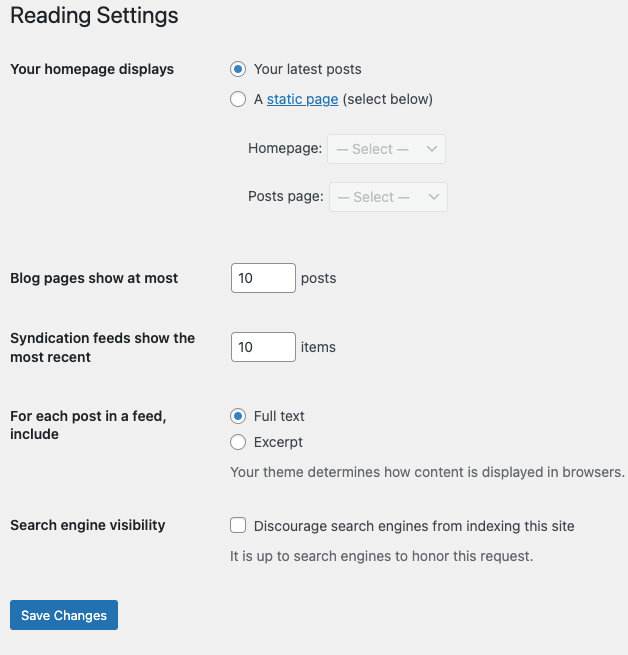
Screenshot: Settings → Reading showing the Search engine visibility option.
2) Decide your preferred URL format (www vs non-www)
Pick one and stick with it. In Settings → General, confirm your WordPress Address (URL) and Site Address (URL) are correct and match the format you want to keep long-term.

Screenshot: Settings → General showing the WordPress Address and Site Address fields.
3) Avoid running multiple SEO plugins
If you already have another SEO plugin active, decide which one you’ll use and deactivate the other before configuring Yoast. Running multiple SEO plugins can create conflicting titles, meta tags, and sitemap issues.
4) Collect your basic brand details
Have these ready so the wizard is fast:
Your site name and tagline.
Whether your site represents an organization or a person.
Your logo image (ideally a square version) and a featured “social sharing” image you’re comfortable using as a default.
Installing Yoast SEO Plugin
In your WordPress dashboard, go to Plugins → Add New, search for “Yoast SEO,” then click Install Now and Activate.
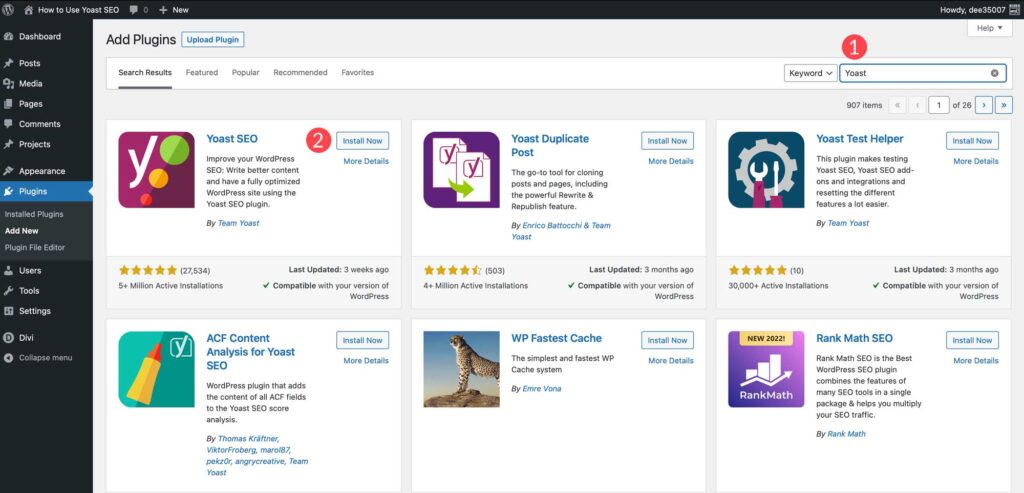
Screenshot: Plugins → Add New search results highlighting Yoast SEO, with the Install/Activate buttons visible.
If you’re migrating from another SEO plugin, Yoast may offer an import flow. Only import once you’ve decided to fully switch, and review the results carefully afterward.
Step-by-Step Configuration Wizard Walkthrough
After activation, look for the new Yoast SEO menu item in your WordPress admin sidebar. Most first-time setups can be completed via Yoast’s configuration flow and then refined in Settings.
Step 1: Start the first-time configuration
Open Yoast SEO and find the prompt to start the configuration or “first-time configuration.” If you don’t see it immediately, check the Yoast SEO dashboard for a setup banner.
Screenshot: Yoast SEO dashboard showing the first-time configuration prompt.
Step 2: Site representation (person vs organization)
Select whether the site represents a person or an organization. This helps search engines understand your site’s identity, and it can affect how your site appears in search results.
If you choose Organization, add your organization name and logo. If you choose Person, select the user profile that represents the site (and make sure that profile has a clear display name).
Screenshot: Wizard screen for “Site representation” (person/organization), showing fields for name and logo.
Step 3: Social profiles (optional but recommended)
Add the social profiles that match your brand. This can help with consistency and may support how your brand is understood across the web. Only add profiles you actively maintain.
Screenshot: Wizard screen showing social profile URL fields.
Step 4: Search visibility choices (what to show in search)
The wizard may ask about search visibility for different content types. For most beginner sites, the safest approach is:
Posts and Pages: visible in search (index).
Media attachments: avoid indexing thin attachment pages if your theme creates them (many sites don’t benefit from these being indexed). If Yoast provides a “redirect attachment URLs” option, enabling it is often a good default because it helps prevent low-value pages from being indexed.
Screenshot: Wizard screen for search visibility/content types.
Step 5: Multiple authors setting
If you are the only writer, tell Yoast it’s a single-author site when asked. This can help avoid creating unnecessary author archive pages that might be thin on content. If you run a multi-author blog, choose the multi-author option so those archives can remain useful and intentional.
Screenshot: Wizard screen asking whether your site has multiple authors.
Step 6: Title settings and separators
Yoast may ask you to choose how your SEO titles look (often including a title separator like a dash). Choose the format that matches your brand. A common beginner pattern is: Page/Post title, then the site name.
Screenshot: Wizard screen for title settings and title separator.
Step 7: Finish and save
Complete the wizard and save changes. After this, you’ll refine the most important settings in the Yoast SEO settings screens.
Optimizing Your Site Settings
Once the wizard is complete, go to Yoast SEO → Settings (or the equivalent settings area in your version) and review these items carefully.
Set your SEO title and meta description defaults
Yoast can auto-generate SEO titles and meta descriptions, but for important pages (homepage, services, core landing pages), we recommend writing them manually.
Homepage: Make sure your homepage has a clear SEO title and meta description that describes what you do and who you serve.
Posts: Ensure your post title template makes sense and includes your site name.
Screenshot: Search appearance/title templates screen (or equivalent) showing default templates.
Control what gets indexed
Index the pages that should rank. Consider noindexing archives that don’t add value (for example, empty tag archives). This is a “less is more” area for many new sites: keep search engines focused on your best content.
Connect your site to Google Search Console (optional but recommended)
If your Yoast version includes a “site connections” area, add your search engine verification codes there. This helps you verify ownership and view indexing and performance data later. If your version doesn’t include this section, you can still verify via your SEO plugin, a dedicated verification plugin, or your theme settings.
Screenshot: Site connections/verification screen (if present), showing fields for verification codes.
Set breadcrumbs (optional)
Yoast can generate breadcrumbs, but it typically requires theme support or a small theme edit. If you’re a beginner and your theme doesn’t already support Yoast breadcrumbs, it’s okay to skip this initially and revisit later.
Configuring XML Sitemaps and Search Appearance
Yoast’s XML sitemap helps search engines discover your content efficiently. Confirm that sitemaps are enabled and that the sitemap includes the content types you want indexed.
Verify your sitemap is working
In the Yoast settings, find the XML sitemap section. Use the provided sitemap link to confirm it loads. If the link errors, a caching/security plugin may be blocking it, or another plugin may be generating a sitemap.
Screenshot: Yoast XML sitemap settings with the sitemap link visible.
Review search appearance by content type
Check that Posts and Pages show in search results. For other content types, only enable indexing if they’re truly valuable as standalone pages (for example, a “Projects” custom post type might be great to index; a thin “Testimonials” type might not be).
Screenshot: Search appearance settings showing toggles for content types and “Show in search results.”
| Site area | Recommended beginner approach |
|---|---|
| Posts | Index (show in search results) |
| Pages | Index (show in search results) |
| Categories | Index if you plan to use categories intentionally and add enough posts per category |
| Tags | Often noindex for new sites unless tags are curated and have unique value |
| Media attachment pages | Avoid indexing thin attachment pages; redirect attachment URLs if available |
| Author archives | Single-author sites often benefit from disabling/noindexing author archives |
Common Configuration Mistakes to Avoid
Mistake 1: “Discourage search engines” left enabled
If you built your site in private mode and forgot to turn it off, your SEO work won’t matter. Double-check Settings → Reading.
Mistake 2: Indexing thin pages (tags, author archives, attachment pages)
New sites often create lots of low-value URLs by default. Keep your index clean: only index what you want people to land on from Google.
Mistake 3: Writing one meta description for every post, forever
Not every post needs a custom meta description on day one. Prioritize your key pages and top traffic posts first, then iterate.
Mistake 4: Chasing “green lights” instead of clarity
Yoast’s checks are helpful, but they’re not the goal. The goal is clear structure, helpful content, and titles that match what people search for.
Mistake 5: Forgetting to optimize site basics
SEO is more than plugin settings. Make sure your site has a clear navigation, fast loading pages, and at least a few strong foundational pages (Home, About, Contact, and your core offerings).
Frequently Asked Questions
Do I need Yoast SEO Premium to be SEO-ready?
No. Many new WordPress sites can get excellent results with the free version, as long as the basics are configured correctly and you publish high-quality content consistently.
Should I set a focus keyphrase for every page?
It’s helpful for important pages, but it’s not required for every URL. Start with your homepage and your most important landing pages, then optimize posts as you publish them.
Why is my sitemap not showing or returning an error?
Common causes include caching/security plugins, server rules, or another plugin already outputting a sitemap. Temporarily disable conflicting features and re-check. If you’re unsure, your host or a developer can help diagnose quickly.
What pages should I noindex as a beginner?
If you’re not intentionally using tag archives or author archives, those are common candidates. Also consider avoiding indexed media attachment pages if they’re thin. When in doubt, keep it simple: index your main content and skip the rest until you have a reason.
How do I use Yoast inside the WordPress editor?
Edit a post or page and look for the Yoast panel (often in the sidebar). Start by writing your content, then adjust the SEO title, meta description, and keyphrase. Use the readability suggestions as a final polish, not as a strict checklist.
Next Steps After Configuration
After you finish setup, here are the first optimization tasks we recommend:
Optimize your homepage SEO title and meta description, and make sure your homepage clearly explains what your site offers.
Create or refine your core pages (About, Contact, and your main services/products) and give each a unique SEO title and meta description.
Pick one content topic you can realistically publish about, then commit to consistent posting. SEO is cumulative.
Submit your sitemap in Google Search Console once your site is verified, and check back for indexing status and coverage issues.
If you’re using our tools, we also recommend reading Getting Started with ClearPost WordPress Plugin to speed up your content workflow while keeping posts structured for the block editor.
[cta] Ready to get your site SEO-ready and publish consistently? At ClearPost, we can help you turn your content plan into clean, well-structured drafts you can optimize in Yoast and publish with confidence. Start by setting up your SEO basics, then focus on a steady publishing cadence.