

You just launched a WordPress site. You have five pages, zero organic traffic, no SEO plugin installed, and no idea where to start. SEO for beginners is not complicated, but it is also not instant. Here is what your first week should look like: install one SEO plugin, pick one keyword for each page, write a title and meta description for each one, submit a sitemap to Google Search Console, and set up a simple way to watch position and clicks. None of this costs money. All of it takes an afternoon per step.
SEO is the practice of making your website appear in Google search results when people type phrases related to your business. It involves three things: choosing the right keywords, creating pages that match what those searchers want to read, and making sure Google can find and understand those pages. That is the whole job. Everything else (backlinks, schema markup, Core Web Vitals) builds on top of those three foundations. If you do the basics in your first week, you will be ahead of most small business owners who launch a site and wait.
Day 1: Install an SEO Plugin
Install one SEO plugin on your WordPress site. Do not install two. Yoast SEO and Rank Math are the two most popular free options, and either one handles the essentials: XML sitemaps, title and meta description fields, and basic schema markup. Pick one, run the setup wizard, and let it generate a sitemap automatically. You can compare both in our breakdown of the best SEO plugin for WordPress to see which fits your site.
The plugin does not do SEO for you. It gives you the fields to fill in. The work is still yours: choosing keywords, writing meta descriptions, and publishing content. But without the plugin, you are editing theme files and writing XML by hand. The plugin collapses all of that into a meta box under your WordPress editor.
Day 2: Pick One Keyword per Page

Open a spreadsheet. List every page on your site: Home, About, Services, Contact, and any blog posts you have published. Next to each page, write one keyword phrase that a customer might type into Google to find that specific page. Not a word. A phrase.
For a plumbing business in Austin, the keyword for the Services page is not “plumbing.” It is “plumber in Austin TX.” For a blog post about fixing a leaking water heater, the keyword is “how to fix a leaking water heater.” One phrase per page. Specific beats broad every time. Broad terms like “plumbing” have national competition. Specific, local, problem-based terms have far less competition and bring in people who actually need your service.
To validate that real people search your chosen phrase, use Google Keyword Planner. It is free inside any Google Ads account. You need to create an Ads account and enter billing information, but your card is not charged unless you run active campaigns. Keyword Planner shows you search volume estimates and related keyword ideas directly from Google’s own data. Without ad spend, you see volume in broad ranges like “100 to 1K” instead of exact numbers. That range is enough. You do not need to know whether a keyword gets 320 or 480 searches. You need to know it gets enough to justify a page.
If you want a deeper process for finding keywords without paying for Ahrefs or Semrush, our keyword research starter guide walks through the full method using only free tools.
Day 3: Write a Title Tag and Meta Description for Each Page
For every page on your site, write two things in your SEO plugin’s meta box: a title tag (the blue clickable link in Google search results) and a meta description (the gray text below it). The title tag should include your keyword and stay under 60 characters. The meta description should include the keyword, describe what the page offers, and stay under 155 characters.
Example for a dental practice in Denver offering teeth whitening:
- Title tag: Teeth Whitening Denver CO | Brighter Smile in One Visit
- Meta description: Professional teeth whitening in Denver. Remove years of stains in a single visit. Safe, affordable, and performed by licensed dental staff.
The title tag is what Google displays as the headline of your search result. The meta description is what convinces someone to click. Neither is a ranking factor in the strict sense, but a better click-through rate sends more traffic to your site, which tells Google your page is relevant. Write them for humans first, include your keyword naturally, and make the benefit specific.
Day 4: Submit Your Sitemap in Google Search Console
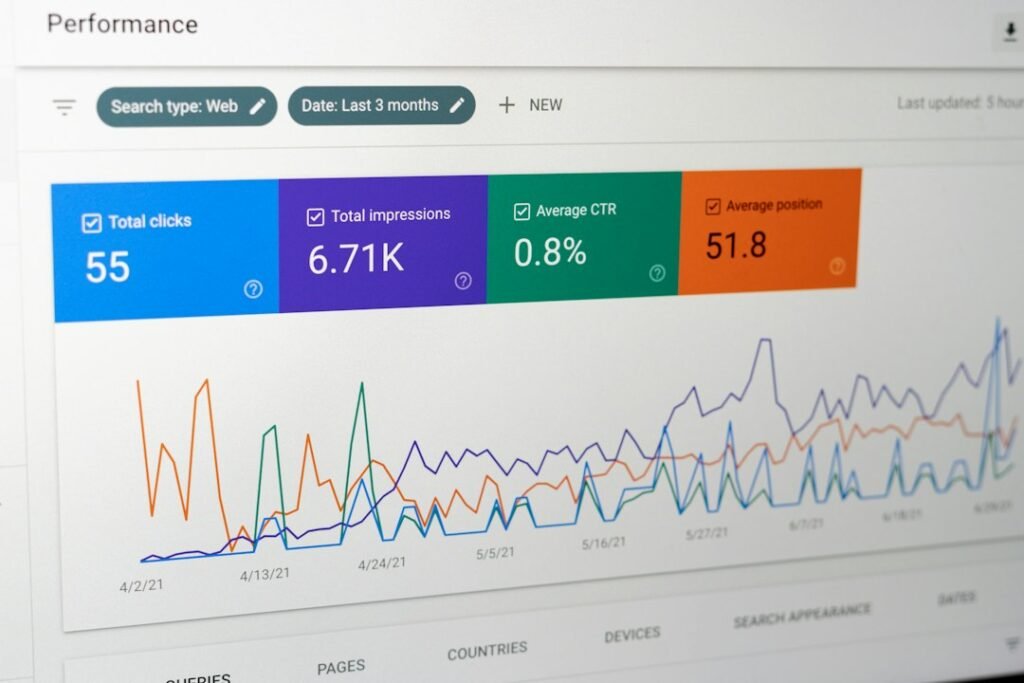
Your SEO plugin generated an XML sitemap when you ran its setup wizard. A sitemap is a file that lists every page on your site so search engines can discover them without crawling blindly. Now you need to tell Google where that sitemap lives.
Go to Google Search Console. Sign in with a Google account. Add your site as a property. You can verify ownership using a meta tag (your SEO plugin can insert it automatically) or by adding a DNS record through your domain registrar. Once verified, click “Sitemaps” in the left sidebar, paste your sitemap URL (typically yourdomain.com/sitemap_index.xml if you use Yoast, or yourdomain.com/sitemap.xml if you use Rank Math), and click Submit.
Google Search Console is free. It is the only tool that shows you exactly how Google sees your site: which queries trigger your pages, how many impressions you get, your average position, and your click-through rate. We use Search Console data throughout our content workflow, and it is the single most important free tool for any small business owner doing SEO. If you want to see how it fits into a broader campaign, our SEO campaign month-by-month breakdown shows what you should see in Search Console at each stage.
Day 5: Set Up Bing Webmaster Tools
Google is the dominant search engine, but Bing still powers a meaningful share of desktop searches and all voice searches through Cortana and Alexa. Bing Webmaster Tools is free and works almost identically to Search Console. Add your site, verify ownership, and submit the same sitemap you submitted to Google.
Bing Webmaster Tools also has a keyword research tool built in, showing search volume and related terms specifically for Bing’s audience. It will not replace Google Keyword Planner, but it is a useful second data point when you are validating keywords.
Day 6: Set Up Position and Click Tracking
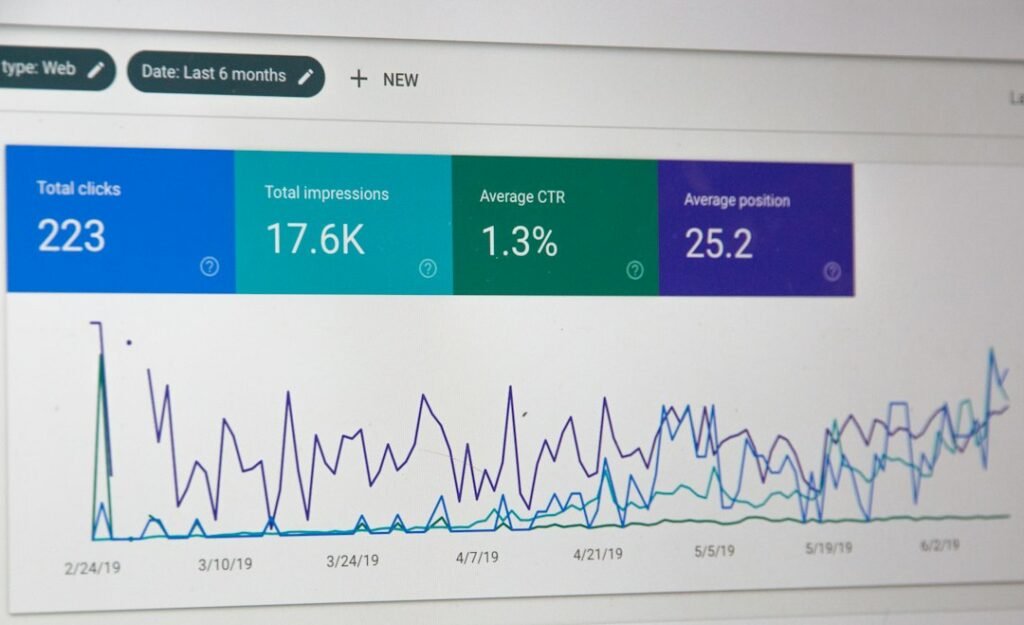
You do not need a paid rank tracker in your first week. Google Search Console’s Performance report shows you position, impressions, clicks, and click-through rate for every query that triggered your site. Open Search Console, go to Performance, and you will see four tabs: Queries, Pages, Countries, and Devices.
Here is the number to watch first: impressions, not clicks. Impressions tell you that Google is showing your pages for a query. Clicks tell you that someone clicked your result. In your first weeks and months, you will see impressions appear before clicks, because your pages will rank on page 2 or 3 initially. That is normal. Impressions growing means Google is discovering your content and testing it in results. Clicks follow position, and position improves over time as you publish more content and build authority.
If you see a query with high impressions and a low click-through rate, that is your next optimization target. Improve the title tag and meta description for that page to make the search result more compelling. Or write a dedicated blog post targeting that exact query, which can push you from page 3 to page 1 faster than targeting a brand-new keyword from scratch.
Day 7: Be Honest About the Timeline
SEO takes months. Not weeks, months. If you do everything in this guide correctly, you will likely see your first impressions in Search Console within 2 to 4 weeks as Google crawls and indexes your pages. You will see clicks trickling in within 6 to 12 weeks for low-competition keywords. Meaningful traffic usually starts at the 4 to 6 month mark, and it compounds from there if you keep publishing.
This is the part where most beginners quit. They publish five pages, wait two weeks, see zero traffic, and assume SEO does not work. It does work. It works slowly, then suddenly. The sites that win are the ones that keep publishing while they wait. If you want a realistic picture of how many posts it takes and when traffic starts, our guide on how many blog posts until you see organic traffic lays out the timeline with real milestones.
The Free Tools, What Each One Does
| Tool | Cost | What It Is Good For |
|---|---|---|
| Google Search Console | Free | Shows which queries trigger your site, impressions, clicks, position, and indexation status. The single most important free SEO tool. |
| Bing Webmaster Tools | Free | Same function as Search Console but for Bing. Includes a keyword research tool with Bing-specific volume data. |
| Google Keyword Planner | Free | Search volume estimates and keyword ideas from Google’s own data. Best for validating that real people search a phrase before you target it. |
These three tools cover research, indexation, and performance tracking. You can run SEO for a small business site for months without paying for anything else. Paid tools like Semrush and Ahrefs add keyword difficulty scores and backlink analysis, but for a site with 5 to 15 pages targeting local keywords, those metrics are not your bottleneck. Publishing content is.
What Happens After Week One
Your first week sets the foundation. Plugin installed, keywords chosen, titles and meta descriptions written, sitemap submitted, tracking in place. From here, the work shifts to content. One blog post per week targeting a specific keyword is the minimum viable publishing cadence. Two per week is better. The posts should answer real questions your customers ask, use the same language they use, and be long enough to thoroughly cover the topic.
If the publishing bottleneck is what stops you (and for most small business owners, it is), ClearPost can help. You bring the keyword list, AI generates the drafts, and you approve every post before it goes live. Or run it on full autopilot if you prefer. No long onboarding, no agency overhead, cancel anytime. See what 30 SEO-optimized posts a month looks like compared to the 4 you are getting now.
Frequently Asked Questions
Do I need a paid SEO tool in my first week?
No. Google Search Console, Bing Webmaster Tools, and Google Keyword Planner cover research, indexation, and tracking for free. Paid tools add keyword difficulty scores and backlink data, but for a new site with a few pages targeting local keywords, publishing content is the bottleneck, not data depth.
How long until I see traffic from SEO?
Typically 4 to 6 months for meaningful organic traffic, with impressions appearing in Search Console within 2 to 4 weeks. Low-competition local keywords can produce clicks in 6 to 12 weeks. Any promise of page-one rankings in under 6 months is a sales pitch, not a plan.
Which is better, Yoast or Rank Math?
Both handle the essentials well: XML sitemaps, title and meta description fields, and schema markup. Yoast is older and has a larger support community. Rank Math has more features in its free tier. Either one is fine for a new WordPress site. Pick one and run the setup wizard.
What should I look at first in Google Search Console?
Look at impressions first, not clicks. Impressions tell you Google is discovering your pages and showing them for queries. Clicks follow position, and position improves over months. Growing impressions in the first 4 to 8 weeks is the signal that your SEO setup is working.
Can I do SEO myself without an agency?
Yes. The first-week steps in this guide require no agency and no paid tools. Keyword research, on-page optimization, sitemap submission, and performance tracking are all manageable with free tools and an SEO plugin. The one area that benefits from human help is link building, which requires outreach you cannot fully automate.
Frequently Asked Questions
Do I need a paid SEO tool in my first week?
No. Google Search Console, Bing Webmaster Tools, and Google Keyword Planner cover research, indexation, and tracking for free. Paid tools add keyword difficulty scores and backlink data, but for a new site with a few pages targeting local keywords, publishing content is the bottleneck, not data depth.
How long until I see traffic from SEO?
Typically 4 to 6 months for meaningful organic traffic, with impressions appearing in Search Console within 2 to 4 weeks. Low-competition local keywords can produce clicks in 6 to 12 weeks. Any promise of page-one rankings in under 6 months is a sales pitch, not a plan.
Which is better, Yoast or Rank Math?
Both handle the essentials well: XML sitemaps, title and meta description fields, and schema markup. Yoast is older and has a larger support community. Rank Math has more features in its free tier. Either one is fine for a new WordPress site. Pick one and run the setup wizard.
What should I look at first in Google Search Console?
Look at impressions first, not clicks. Impressions tell you Google is discovering your pages and showing them for queries. Clicks follow position, and position improves over months. Growing impressions in the first 4 to 8 weeks is the signal that your SEO setup is working.
Can I do SEO myself without an agency?
Yes. The first-week steps in this guide require no agency and no paid tools. Keyword research, on-page optimization, sitemap submission, and performance tracking are all manageable with free tools and an SEO plugin. The one area that benefits from human help is link building, which requires outreach you cannot fully automate.