
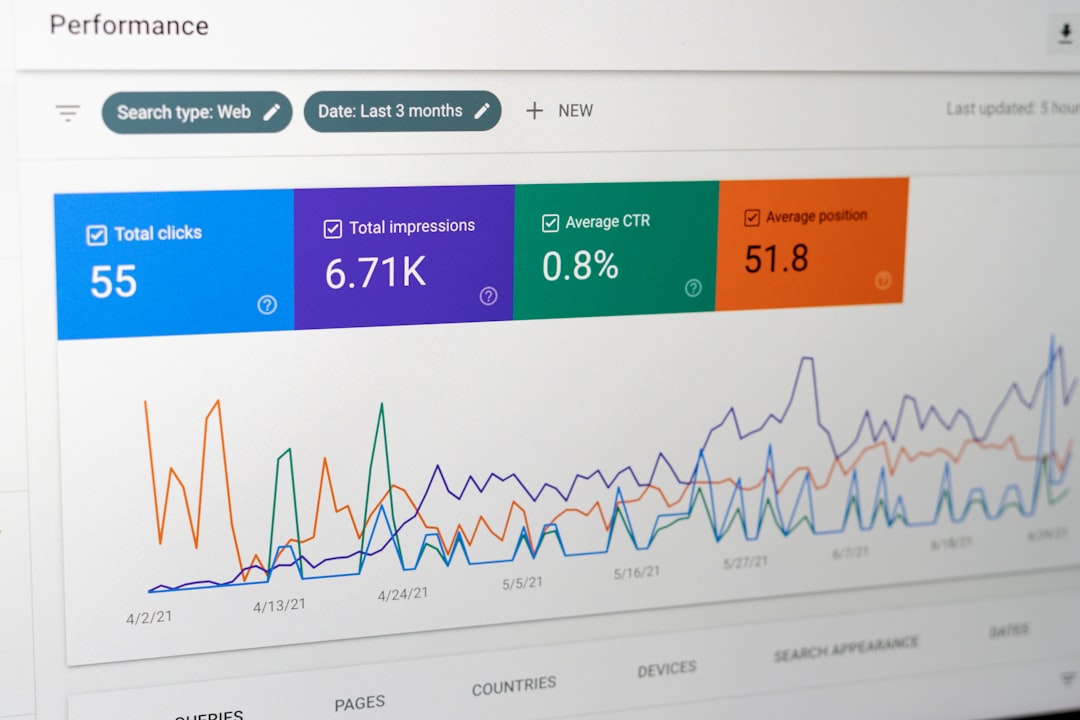
You built a WordPress site. You published content. And now you’re watching your traffic flatline while competitors seem to climb the rankings effortlessly. Sound familiar? The gap between a WordPress site that ranks and one that doesn’t usually comes down to how well it’s optimized for search engines—and the good news is, most of the fixes are straightforward.
This guide walks you through every essential step for optimizing WordPress for search engines, from the settings you configure once to the ongoing habits that compound over time. Whether you’re starting from scratch or looking to sharpen an existing site, you’ll find actionable steps you can implement today.
Why WordPress SEO Optimization Matters
WordPress already powers a massive share of the web—over 43% of all websites run on it. That’s both an advantage and a challenge. The platform gives you a solid foundation for SEO, but with hundreds of millions of WordPress sites competing for attention, “good enough” won’t cut it.
Here’s why optimization matters so much: the top three organic search results receive over 68% of all clicks on Google’s search page. If your site isn’t visible on page one, you’re essentially invisible. Only about 0.63% of users click on something from the second page of results.
The search landscape is also shifting. Google’s AI Overviews now appear on a significant percentage of search result pages, which means your WordPress SEO plan should target both traditional rankings and AI visibility by publishing well-structured, authoritative content. SEO isn’t dying—it’s evolving. And WordPress sites that are properly optimized are best positioned to capture traffic regardless of how search results change.
The bottom line: SEO can deliver up to 700% ROI when executed as a long-term strategy. That makes it one of the highest-return marketing investments you can make—especially when your platform already has the foundation for it.
Essential WordPress SEO Settings to Configure
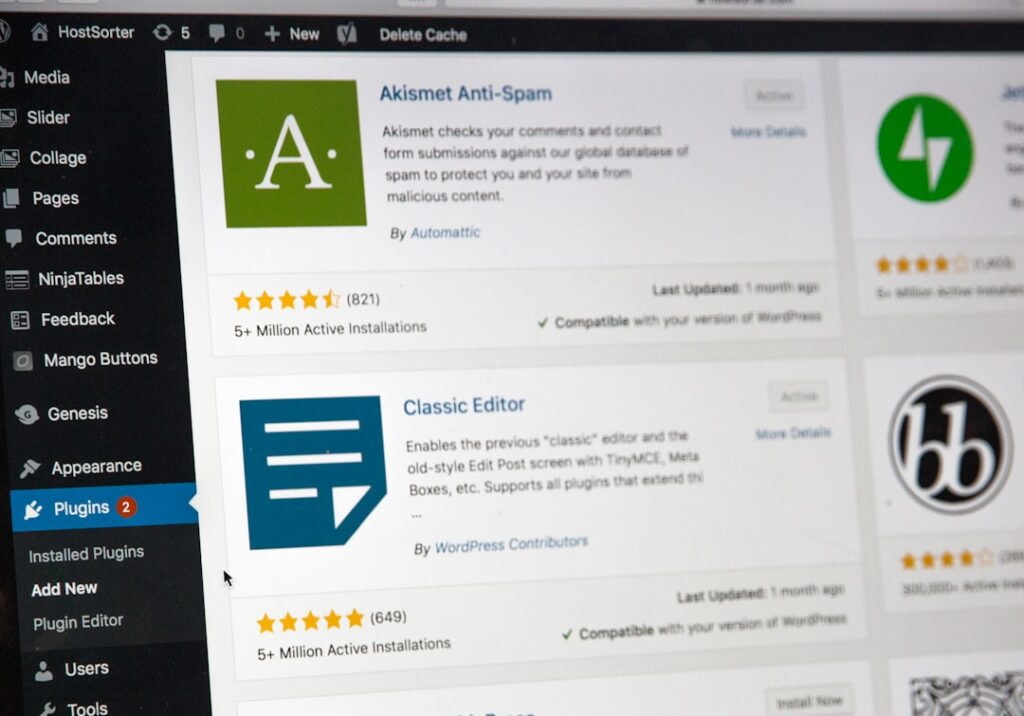
Before you touch a single blog post, you need to get your WordPress settings right. These are one-time configurations that affect every page on your site—and getting them wrong can silently sabotage your rankings for months.
Set SEO-Friendly Permalinks
WordPress defaults to ugly URLs like yoursite.com/?p=123. These tell search engines nothing about your content. Go to Settings → Permalinks and select “Post name”. This generates clean URLs like yoursite.com/wordpress-seo-guide, which are both user-friendly and keyword-rich. Research shows that URLs containing terms similar to a keyword have a 45% higher click-through rate.
Verify Your Site’s Visibility Setting
This one trips up more people than you’d expect. Navigate to Settings → Reading and make sure the box labeled “Discourage search engines from indexing this site” is unchecked. If this is checked—sometimes left over from a staging or development phase—Google will honor the request and ignore your entire site.
Configure Your Site Title and Tagline
Under Settings → General, set a clear site title and a descriptive tagline. These often appear in search results as your homepage title and description. Make them specific: “Jane’s Bakery – Artisan Sourdough in Portland” is far better than “Just another WordPress site.”
Set Up SSL (HTTPS)
Google has used HTTPS as a ranking signal for years. Most hosting providers now include free SSL certificates. Ensure your WordPress Address and Site Address (under Settings → General) both start with https://. If you’re migrating from HTTP, use a plugin or your host’s built-in tool to redirect all traffic to the secure version.
Installing and Configuring the Right SEO Plugin
WordPress doesn’t include built-in controls for meta descriptions, XML sitemaps, or schema markup—you need a plugin for that. The right SEO plugin transforms your dashboard into a proper optimization command center without requiring you to edit code.
Choosing Your SEO Plugin
The two most popular standalone SEO plugins are Yoast SEO and Rank Math. Over 22 million websites use Yoast SEO, while Rank Math has grown rapidly to over 3 million active installations. Both handle the essentials: meta titles and descriptions, XML sitemaps, schema markup, breadcrumbs, and content analysis. Rank Math tends to offer more features in its free tier; Yoast has a longer track record and slightly simpler interface, and if you are weighing the paid version, it is worth checking whether Yoast Premium justifies its price.
For WordPress site owners who want SEO automation that goes beyond manual plugin configuration, ClearPost handles content optimization, internal linking, and publishing workflows so you spend less time on repetitive SEO tasks and more time on strategy.
Key Plugin Settings to Configure
Once your SEO plugin is installed, prioritize these configurations:
XML Sitemap: Enable your plugin’s sitemap feature and submit the URL (usually yoursite.com/sitemap_index.xml) to Google Search Console. This helps Google discover and index all your important pages.
Title Templates: Set default title formats for posts, pages, and archives. A solid post title template might be: %title% | %sitename%. This ensures every page has a structured title even if you don’t customize it individually.
Schema Markup: Implementing structured data helps search engines understand the meaning and context of your content, which can improve visibility in rich results and AI-generated summaries. Set your default schema type to “Article” for blog posts and “WebPage” for static pages.
Noindex Settings: Tell search engines to ignore low-value pages like tag archives, author archives (on single-author sites), and date-based archives. This prevents thin content from diluting your site’s overall quality signals.
Optimizing Your Content for Search Engines
Technical settings get your site ready to rank. Content is what actually earns the rankings. On-page optimization is where most of your ongoing SEO effort should go—and it’s where the biggest wins are for sites that haven’t been doing it systematically.
Write Compelling Title Tags and Meta Descriptions
Your title tag is the single most influential on-page ranking factor. Include your target keyword naturally—ideally near the beginning—and keep titles under 60 characters to prevent truncation. For meta descriptions, aim for 150-160 characters that clearly communicate what the reader will gain. About 25% of top-ranking pages are missing meta descriptions entirely—that’s an easy gap to fill.
Be aware that Google is 57% more likely to rewrite meta titles that are too long. When Google rewrites your title, you lose control of your messaging in the search results.
Structure Content with Heading Hierarchy
Use a single H1 tag (your post title) followed by H2s for main sections and H3s for subsections. This hierarchy helps search engines understand the topical structure of your content—and it makes your posts easier for readers to scan. Include variations of your target keyword in some (not all) subheadings.
Optimize Images with Alt Text and Compression
Every image on your site should have descriptive alt text that explains what the image shows. Alt text serves double duty: it helps visually impaired users and gives search engines context about your visual content. Use file names that are descriptive (e.g., wordpress-seo-settings-panel.webp instead of IMG_4582.jpg). Convert images to WebP format and compress them to keep file sizes small—this directly impacts page speed, which we’ll cover shortly.
Build a Strong Internal Linking Structure
Internal links are one of the most underused SEO tactics on WordPress sites. Every post should link to 2-5 other relevant posts or pages on your site using descriptive anchor text. Maintaining strong internal links between related pages helps visitors navigate your website and helps search engines understand your site’s structure. Think of it as building a web of topical authority: the more interconnected your content, the more clearly Google understands what you’re an expert on.
Target Search Intent, Not Just Keywords
Keyword stuffing hasn’t worked for years, but many WordPress site owners still fixate on exact-match keyword density. The modern approach is to match search intent: understand why someone searches for a term and create content that fully satisfies that need. Over 34% of Google search queries contain four or more words, signaling that users are asking specific, intent-rich questions. Answer those questions directly and thoroughly.
Technical SEO Best Practices for WordPress

Technical SEO ensures that search engines can efficiently crawl, understand, and index your site. Even brilliant content won’t rank if search engines can’t access it properly. Here are the technical essentials every WordPress site owner should address.
Submit Your Site to Google Search Console
Google Search Console (GSC) is free and non-negotiable. It shows you exactly how Google sees your site—which pages are indexed, which have errors, and which keywords drive impressions and clicks. After verifying your site ownership, submit your XML sitemap and check the Coverage report for any indexing issues.
Ensure Mobile-Friendliness
Google uses mobile-first indexing, meaning it primarily evaluates the mobile version of your site for rankings. Over 62% of global website traffic comes from smartphone users, so a responsive theme isn’t optional—it’s foundational. Test your site using Google’s PageSpeed Insights on the mobile tab and fix any layout or usability issues flagged there.
Fix Broken Links and Redirect Errors
Repairing broken links is an on-page SEO best practice that can help your WordPress website improve its domain authority. Use a plugin like Broken Link Checker or an external tool like Screaming Frog to identify 404 errors. Set up 301 redirects for any pages you’ve moved or deleted to preserve any link equity they’ve earned.
Manage Crawl Budget Efficiently
WordPress generates many low-value pages by default: tag archives, date archives, author pages, media attachment pages, and paginated archives. Each of these consumes crawl budget—the number of pages Google will crawl on your site in a given timeframe. Use your SEO plugin to noindex these pages, or better yet, disable unnecessary archive types entirely.
Below is a reference table of common technical SEO tasks for WordPress, their priority level, and estimated time to implement:
| Technical SEO Task | Priority | Time to Implement | Impact Level |
|---|---|---|---|
| Set SEO-friendly permalinks | Critical | 2 minutes | High |
| Install and configure SEO plugin | Critical | 15-30 minutes | High |
| Submit XML sitemap to Google Search Console | Critical | 5 minutes | High |
| Enable SSL/HTTPS | Critical | 10-30 minutes | High |
| Set up schema markup | High | 10 minutes | Medium-High |
| Noindex thin/duplicate archive pages | High | 5-10 minutes | Medium |
| Fix broken links and set 301 redirects | High | 30-60 minutes | Medium |
| Optimize robots.txt | Medium | 5 minutes | Medium |
| Implement breadcrumb navigation | Medium | 10 minutes | Medium |
| Audit and remove unused plugins/themes | Medium | 15-30 minutes | Medium |
Speed and Performance Optimization

A slow WordPress site bleeds traffic, rankings, and revenue simultaneously. A site loading in 1 second has a conversion rate 5x higher than one loading in 5 seconds. Google has made page speed an explicit ranking factor through Core Web Vitals—and only 50% of WordPress sites currently meet Google’s Core Web Vitals standards. That means half of all WordPress sites have immediate room to improve.
Choose Quality Hosting
Your hosting provider is the single biggest factor in your site’s baseline speed. Shared hosting plans can bottleneck your site during traffic spikes because you share server resources with hundreds of other sites. If your budget allows, managed WordPress hosting provides server-level caching, automatic updates, and infrastructure specifically tuned for WordPress performance.
Implement Caching
Caching stores static versions of your pages so the server doesn’t rebuild them from scratch for every visitor. This can dramatically reduce load times, especially for repeat visitors. Caching plugins like WP Rocket or LiteSpeed Cache handle this automatically. If your host provides server-level caching, enable that first and then layer a caching plugin on top if needed.
Optimize Images and Media
Images are typically the largest files on any WordPress page. Compress them before uploading (or use a plugin like ShortPixel or Imagify to automate this). Convert to WebP format wherever possible—it offers significantly smaller file sizes than JPEG or PNG at comparable quality. Enable lazy loading so images below the fold only load when the visitor scrolls to them.
Minimize Render-Blocking Resources
Excessive CSS and JavaScript files can block your page from rendering quickly. Minify and combine CSS/JS files where safe, defer non-critical JavaScript, and remove unused plugin scripts from pages where they aren’t needed. The key metric to watch here is Largest Contentful Paint (LCP)—Google wants this under 2.5 seconds.
Use a Content Delivery Network (CDN)
A CDN distributes your site’s static files across servers worldwide, so visitors load content from a server geographically close to them. Cloudflare offers a generous free tier that includes CDN, basic security, and DNS management. For most WordPress sites, enabling a CDN is one of the highest-impact, lowest-effort speed improvements available.
If managing caching, image optimization, and performance monitoring feels like too many plates to spin, at ClearPost we believe your time is better spent creating great content. Our plugin automates key optimization tasks so you can focus on what actually moves the needle—your content strategy. See how ClearPost works →
Common WordPress SEO Mistakes to Avoid

Even experienced WordPress users make these mistakes. Fixing them can sometimes deliver faster results than adding new optimizations, because you’re removing friction that’s actively holding your site back.
Installing Too Many Plugins
Most WordPress websites use around 12 to 15 plugins on average. That’s not inherently a problem—the issue is poorly coded or redundant plugins that add unnecessary scripts to every page load. Audit your plugins quarterly: deactivate and delete anything you’re not actively using. Two caching plugins, two SEO plugins, or three analytics trackers will conflict with each other and slow your site down.
Ignoring Image Optimization
Uploading uncompressed 4MB images directly from your phone is one of the fastest ways to tank your page speed. Over half of visitors will abandon a site if it takes longer than 3 seconds to load—and oversized images are the most common culprit. Compress every image, use appropriate dimensions (don’t upload a 4000px wide image for a 800px content area), and always add alt text.
Neglecting Internal Links
Many WordPress sites treat every post as an island. Without internal links, search engines struggle to understand your site’s topical structure, and visitors have no natural path to explore more of your content. Make internal linking a standard part of your content creation process—not an afterthought you’ll “get to later.”
Publishing Thin or Duplicate Content
WordPress’s default archives (categories, tags, dates, authors) can create dozens of pages with thin or duplicate content. Each of these is a page that Google has to crawl and evaluate, potentially diluting your site’s quality signals. Use your SEO plugin to noindex archive types that don’t add unique value, and ensure your category and tag pages have meaningful descriptions.
Skipping Google Search Console
Flying blind is the costliest SEO mistake. Google Search Console tells you exactly which pages have indexing errors, which keywords you’re ranking for, and where you’re losing clicks. It’s free. There’s no excuse not to check it at least monthly.
Over-Relying on AI Content Without Human Review
AI tools can accelerate content creation, but search engines are getting better at detecting purely AI-generated content that lacks real expertise or unique insights. The winning formula is using AI as a force multiplier—letting it handle the heavy lifting while you add your expertise, real-world examples, and editorial judgment. At ClearPost, that’s exactly our philosophy: AI does the heavy lifting, you approve every post.
Frequently Asked Questions
Start Optimizing Your WordPress Site Today
Optimizing WordPress for search engines isn’t a one-day project—it’s an ongoing practice. But the steps in this guide give you a clear roadmap: configure your foundational settings, install and set up your SEO plugin, optimize every piece of content you publish, address your technical SEO basics, and keep your site fast.
Start with the high-impact items from the technical SEO table above—the ones marked “Critical” can be done in under an hour and immediately improve how search engines see your site. Then build the habit of optimizing content with every post you publish: write a compelling title tag, craft a meta description, add internal links, and optimize your images.
If you’re managing multiple sites, juggling content calendars, or simply want to spend less time on manual SEO tasks, ClearPost was built for exactly that problem. Our WordPress plugin automates content optimization, internal linking, and publishing—so you get consistent SEO results without the grind. You approve every post before it goes live. No surprises.
Get Started Free with ClearPost 👉 — 7-day free trial, cancel anytime, zero commitment.
Frequently Asked Questions
How long does it take to see SEO results on a WordPress site?
Most WordPress sites begin seeing measurable improvements in organic traffic within 3 to 6 months of consistent optimization work. Technical fixes like improving site speed or fixing crawl errors can show results in weeks, while content-driven SEO strategies typically take longer to build momentum. The key is consistency—publishing optimized content regularly and maintaining your technical foundation.
Do I need an SEO plugin for WordPress?
While WordPress has decent SEO foundations out of the box, an SEO plugin is strongly recommended. Plugins like Rank Math or Yoast SEO give you control over meta titles, descriptions, XML sitemaps, schema markup, and content analysis—features that WordPress doesn’t provide natively. They simplify tasks that would otherwise require manual code edits.
What is the single most impactful SEO change I can make on my WordPress site?
If you haven’t configured your permalink structure yet, switching from the default (plain) format to a keyword-rich structure like Post name is the single highest-impact change. After that, writing unique, compelling meta titles and descriptions for every page and post is the next biggest win for most WordPress sites.
Does WordPress site speed really affect my search engine rankings?
Yes. Google has confirmed that page speed is a ranking factor, and Core Web Vitals—which measure loading performance, interactivity, and visual stability—are part of the ranking algorithm. Research shows that over half of visitors abandon a site that takes longer than 3 seconds to load. Faster sites rank higher, convert better, and retain more visitors.
Can I optimize WordPress for SEO without any technical knowledge?
Absolutely. Most WordPress SEO optimization can be done through the admin dashboard and SEO plugins without touching any code. Tasks like writing meta descriptions, optimizing images with alt text, setting up permalinks, and creating internal links are all beginner-friendly. For more advanced technical SEO, tools like ClearPost can automate many of the complex tasks for you.
{“@context”: “https://schema.org”, “@type”: “FAQPage”, “mainEntity”: [{“@type”: “Question”, “name”: “How long does it take to see SEO results on a WordPress site?”, “acceptedAnswer”: {“@type”: “Answer”, “text”: “Most WordPress sites begin seeing measurable improvements in organic traffic within 3 to 6 months of consistent optimization work. Technical fixes like improving site speed or fixing crawl errors can show results in weeks, while content-driven SEO strategies typically take longer to build momentum. The key is consistency—publishing optimized content regularly and maintaining your technical foundation.”}}, {“@type”: “Question”, “name”: “Do I need an SEO plugin for WordPress?”, “acceptedAnswer”: {“@type”: “Answer”, “text”: “While WordPress has decent SEO foundations out of the box, an SEO plugin is strongly recommended. Plugins like Rank Math or Yoast SEO give you control over meta titles, descriptions, XML sitemaps, schema markup, and content analysis—features that WordPress doesn’t provide natively. They simplify tasks that would otherwise require manual code edits.”}}, {“@type”: “Question”, “name”: “What is the single most impactful SEO change I can make on my WordPress site?”, “acceptedAnswer”: {“@type”: “Answer”, “text”: “If you haven’t configured your permalink structure yet, switching from the default (plain) format to a keyword-rich structure like Post name is the single highest-impact change. After that, writing unique, compelling meta titles and descriptions for every page and post is the next biggest win for most WordPress sites.”}}, {“@type”: “Question”, “name”: “Does WordPress site speed really affect my search engine rankings?”, “acceptedAnswer”: {“@type”: “Answer”, “text”: “Yes. Google has confirmed that page speed is a ranking factor, and Core Web Vitals—which measure loading performance, interactivity, and visual stability—are part of the ranking algorithm. Research shows that over half of visitors abandon a site that takes longer than 3 seconds to load. Faster sites rank higher, convert better, and retain more visitors.”}}, {“@type”: “Question”, “name”: “Can I optimize WordPress for SEO without any technical knowledge?”, “acceptedAnswer”: {“@type”: “Answer”, “text”: “Absolutely. Most WordPress SEO optimization can be done through the admin dashboard and SEO plugins without touching any code. Tasks like writing meta descriptions, optimizing images with alt text, setting up permalinks, and creating internal links are all beginner-friendly. For more advanced technical SEO, tools like ClearPost can automate many of the complex tasks for you.”}}]}